JAXICLOUD FLEET MANAGEMENT
JAXICLOUD Hosting · User guide
Guides directly on JAXICLOUD Fleet Management
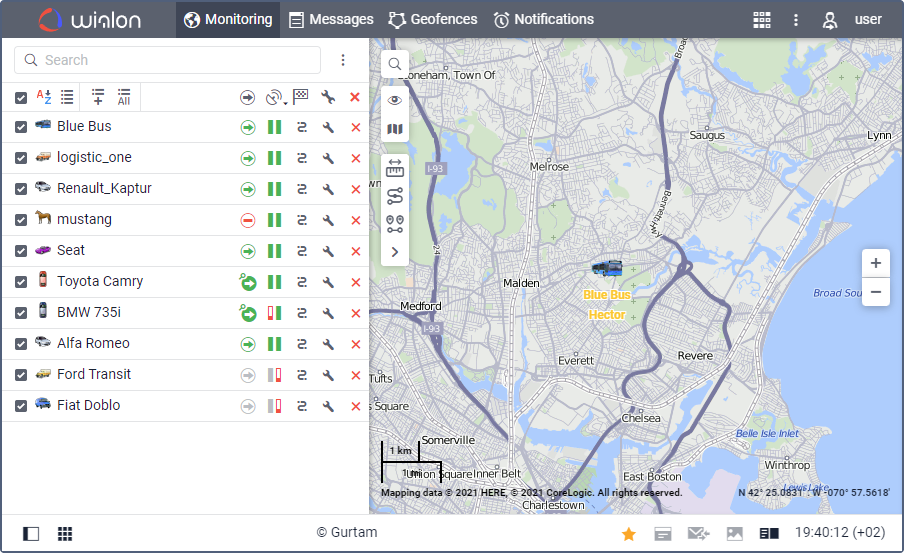
Features and menus depend on permissions, hardware and your agreement. Images are examples from the documented interface.
Login and initial setup
Use your Hosting address and personal account.
Read the guide →Monitoring and map
Open Monitoring, search by name, ID or registration number and add relevant units to the work list.
Read the guide →Tracks and trip history
Open Tracks, choose unit and period and retrieve the route.
Read the guide →Reports, tables and export
Select report template, unit or group and date range.
Read the guide →Geofences and areas
Create a circle, polygon or line and give it a clear name.
Read the guide →Notifications and alerts
Select units, conditions and the action to perform.
Read the guide →Sensors and readings
Open unit properties and Sensors.
Read the guide →Video and cameras
With compatible cameras and video access, view live streams, saved files and playback for a past period.
Read the guide →Drivers and assignments
Create a driver profile and optional group and assign the driver to the correct vehicle.
Read the guide →Trailers and attachments
The trailer feature can record equipment assigned to a vehicle without its own tracker.
Read the guide →Jobs and scheduled actions
Jobs perform recurring scheduled actions, such as report delivery or commands.
Read the guide →Map tools
Use distance, area, address, routing, nearest units, Track Player and track analysis for a specific task.
Read the guide →Administration and permissions
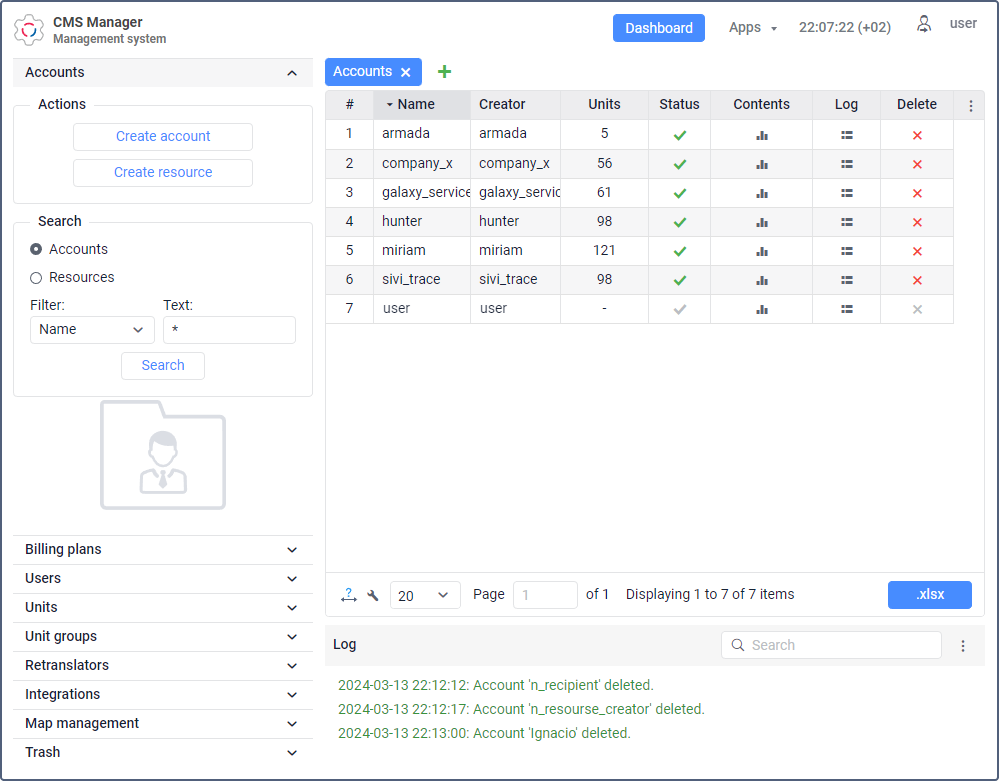
CMS Manager handles accounts, resources, users, units, groups and service access.
Read the guide →Login and initial setup
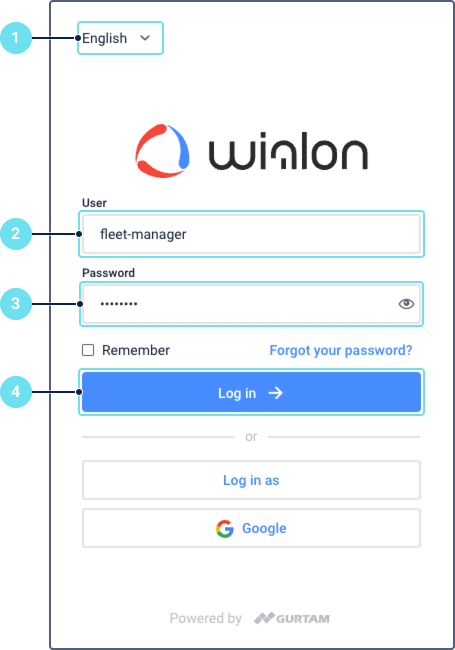
Use your Hosting address and personal account. Select language, log in and check time zone and units. A tracker needs power, data connectivity, the correct server address and an ID matching the account device.
Monitoring and map
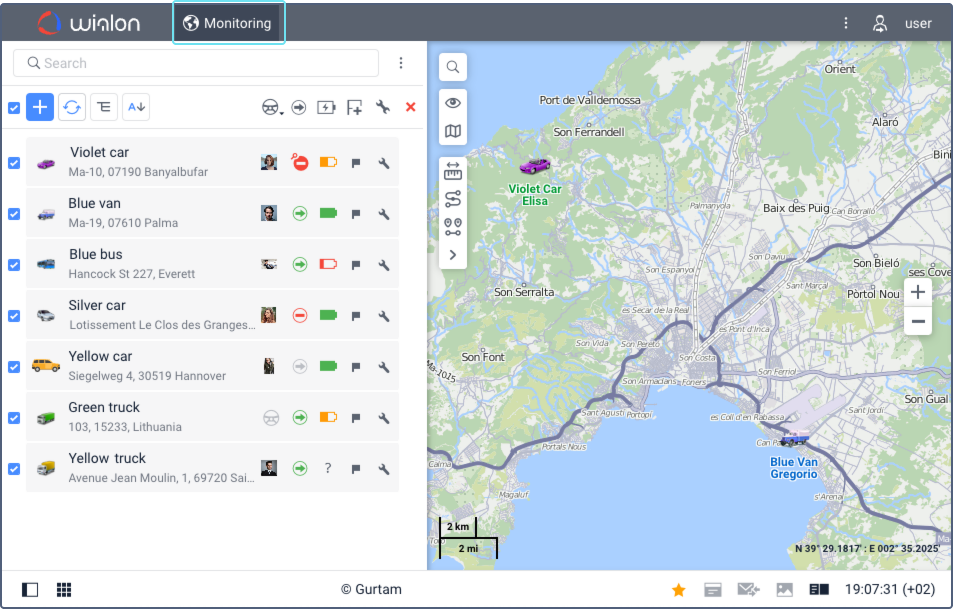
Open Monitoring, search by name, ID or registration number and add relevant units to the work list. Select a unit to show it on the map. Check last message, connection, movement and sensor data before treating a position as current.
Tracks and trip history
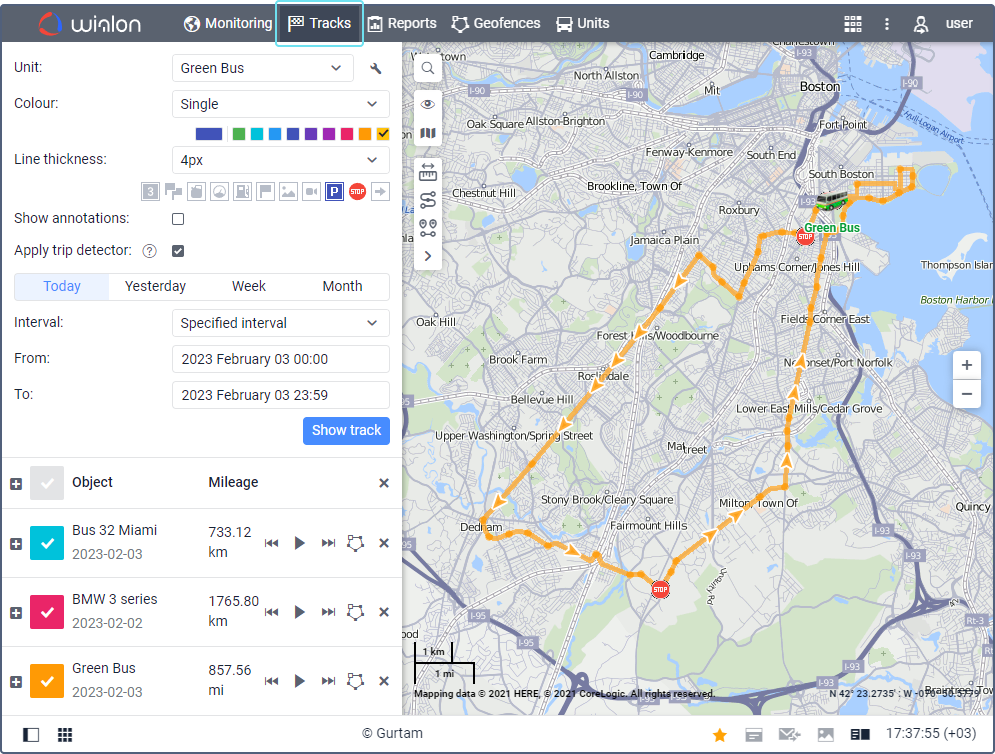
Open Tracks, choose unit and period and retrieve the route. Tracks consist of received data points. Markers can show stops, speeding and detected fillings. Compare gaps with messages and connection status.
Reports, tables and export
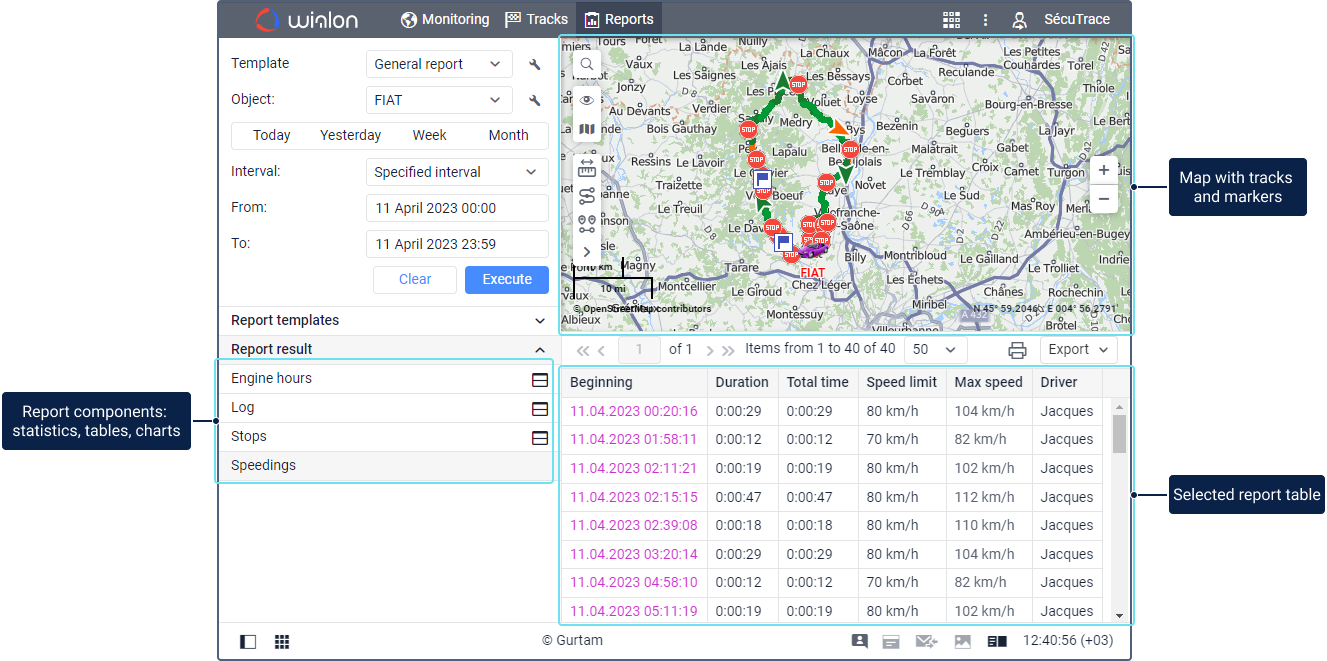
Select report template, unit or group and date range. Run it and review tables, charts, statistics and map. Configure columns and grouping in the template. Save, export or print; scheduled delivery can be configured as a job.
Geofences and areas
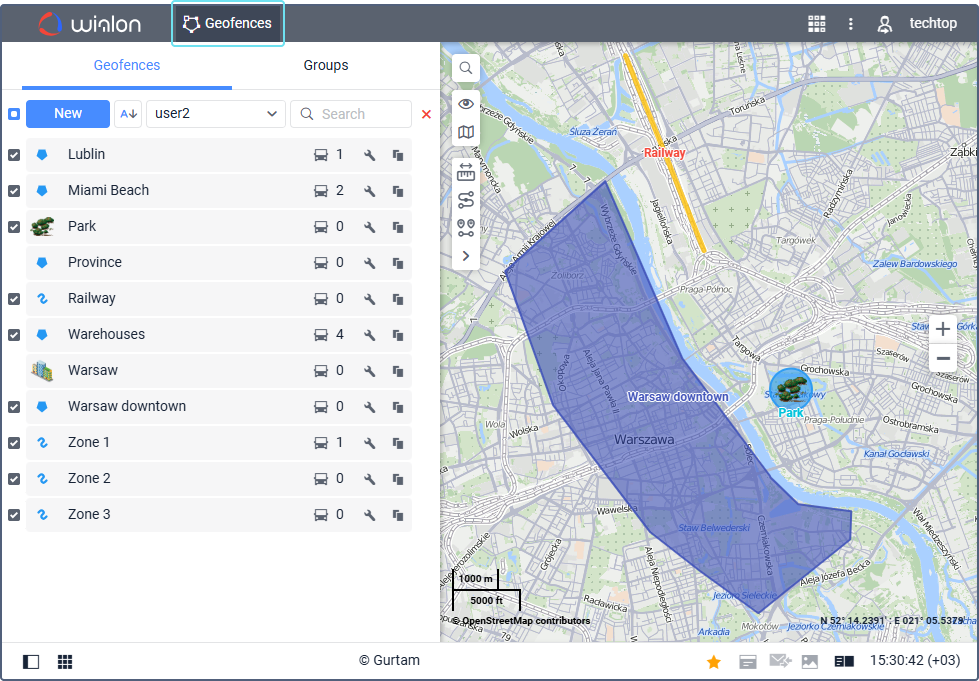
Create a circle, polygon or line and give it a clear name. Geofences can be used in reports, notifications and routes. Organize groups. KML/KMZ supports import and export when permissions allow.
Notifications and alerts
Select units, conditions and the action to perform. Combine conditions with AND or OR and set a schedule and limits. Actions may include messages, email, SMS or commands. Test a known event and verify the recipient.
Read the guide →Sensors and readings
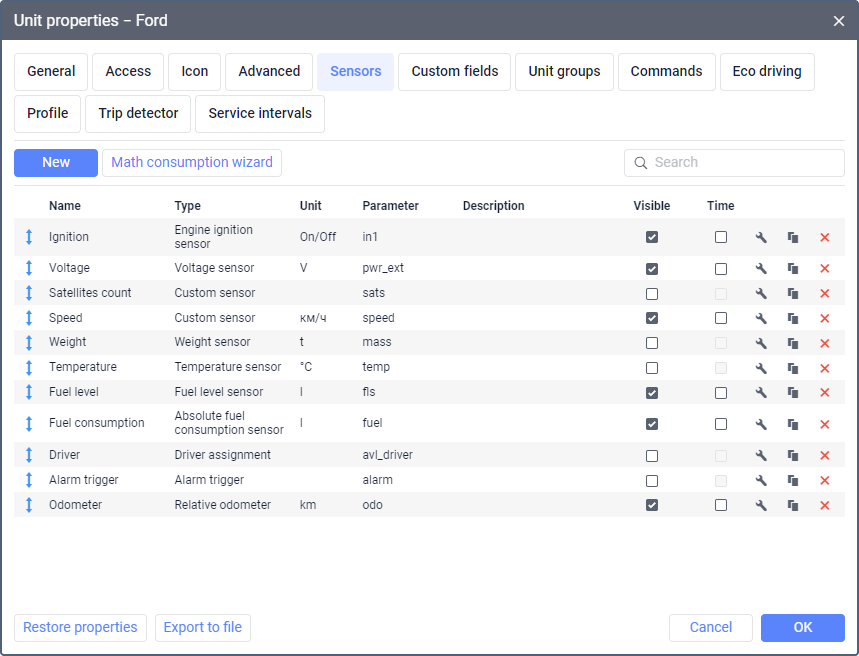
Open unit properties and Sensors. Select sensor type, parameter, measurement unit and any calculation or calibration. The parameter must exist in tracker messages. Check values against known measurements before using reports or alerts.
Video and cameras
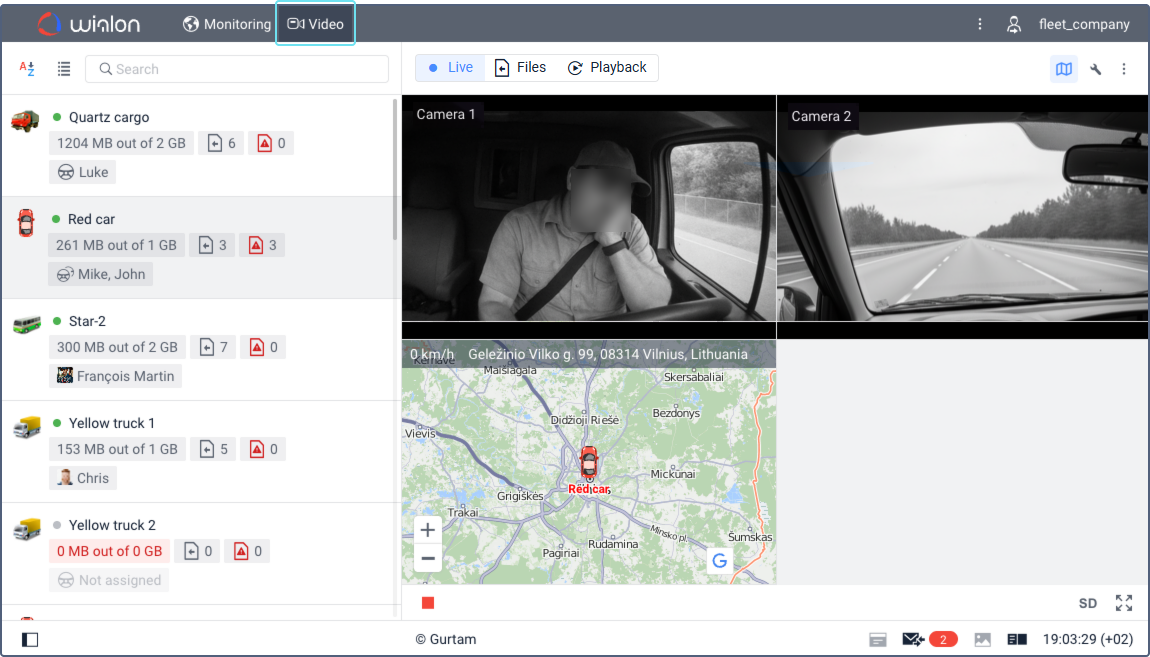
With compatible cameras and video access, view live streams, saved files and playback for a past period. Select vehicle, channel and interval. Viewing, downloading, commands and administration require appropriate permissions.
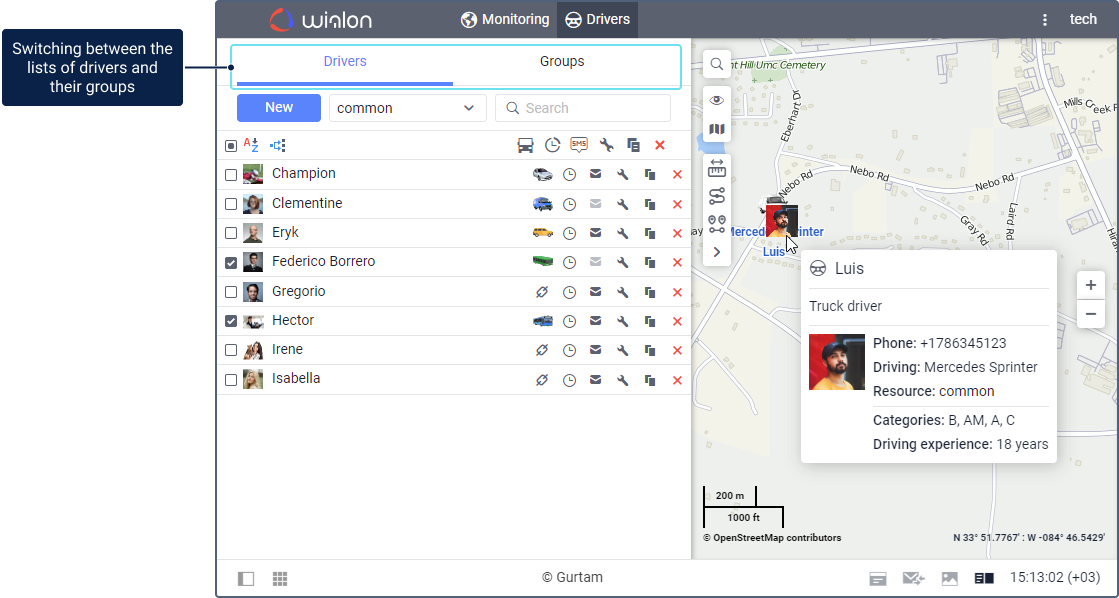
Drivers and assignments
Create a driver profile and optional group and assign the driver to the correct vehicle. Assignment history supports reports and follow-up. Check change times to avoid attributing driving to the wrong person.
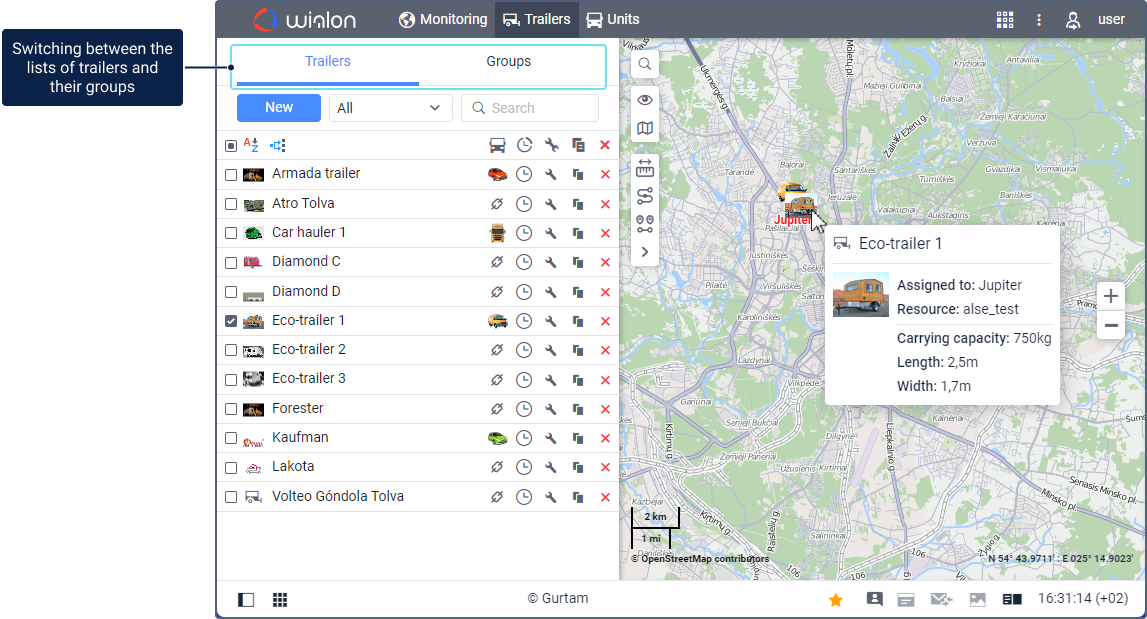
Trailers and attachments
The trailer feature can record equipment assigned to a vehicle without its own tracker. Create trailers and groups and register assignment or separation. A trailer with its own tracker may also be a separate unit in your setup.
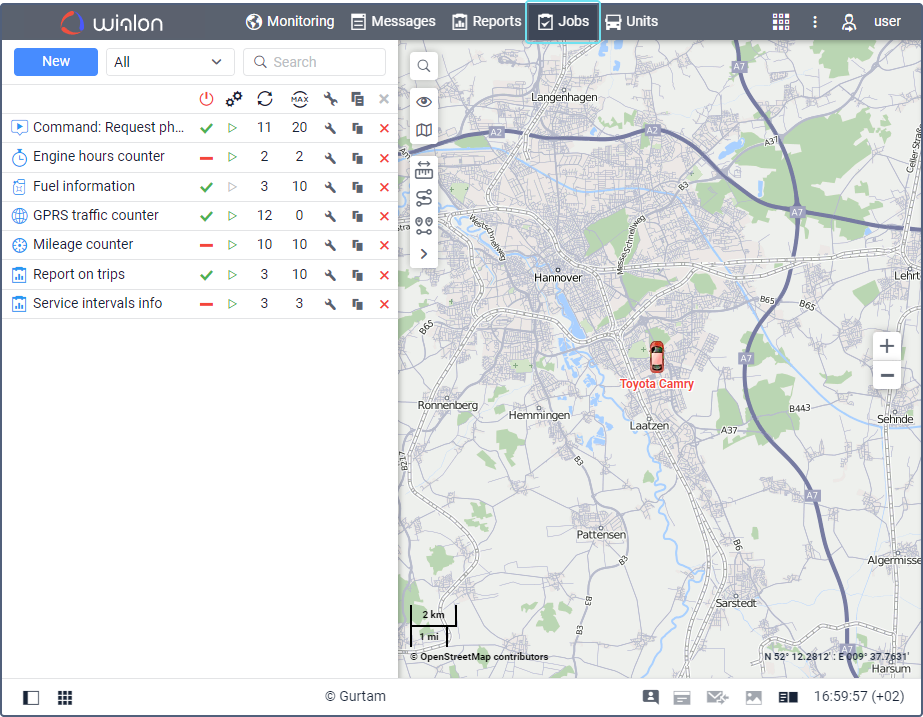
Jobs and scheduled actions
Jobs perform recurring scheduled actions, such as report delivery or commands. Check units, periods and recipients before activation. Use a test run to confirm the result fits operational needs.
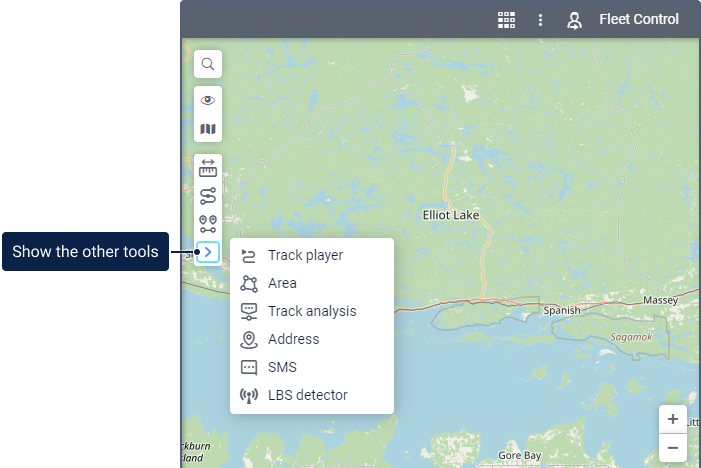
Map tools
Use distance, area, address, routing, nearest units, Track Player and track analysis for a specific task. First select the relevant unit or track and check measurement units.
Administration and permissions
CMS Manager handles accounts, resources, users, units, groups and service access. Grant only necessary rights to relevant objects. JAXICLOUD assists with account structure, access, import, export and data retransmission.
Contact JAXICLOUD Support
Include platform, vehicle or device, time and a description. Send a screenshot to support@jaxicloud.com if possible.
Contact JAXICLOUD Support →